
Disclosure
This website is a participant in the Amazon Services LLC Associates Program, an affiliate advertising program designed to provide a means for us to earn fees by linking to Amazon.com and affiliated sites.
Turning off irrelevant alerts starts in the app’s own settings, where notification categories can be switched off individually. Most scanner apps separate alerts by type, so disabling things like connection status or driving tips keeps only the useful ones.
I open the settings menu first, then turn off every alert I don’t need and keep just the critical ones. It takes two minutes, and my phone finally stays quiet on the road.
Cut the Notification Noise
Most cheap scanner apps push alerts for every code, battery blip, and sensor ping, even when nothing is wrong. That constant buzzing makes you ignore the app entirely. The FOXWELL NT604 Elite reads your car directly and shows real faults on its own screen, so your phone stays quiet until something actually needs your attention.
This is the scanner I use to stop the alert spam: FOXWELL NT604 Elite OBD2 Car Diagnostic Scanner Tool
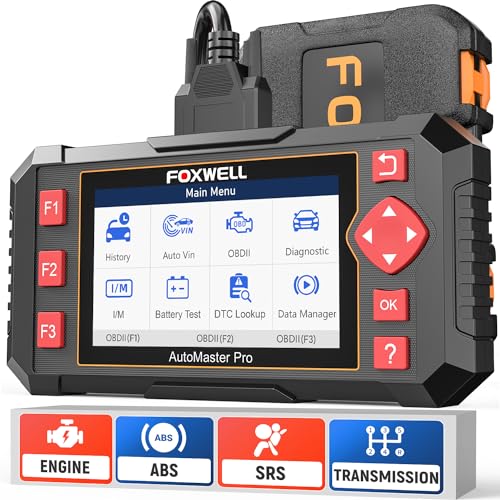
- [Easy to Use—Work Out of the Box] + [FOXWELL 2026 New Version...
- [Affordable] + [Reliable Car Health Monitor] Will you be confused what...
- [4-System Diagnostics + OBDII Functions] FOXWELL NT604 Elite car...
Why Constant OBD2 Scanner App Alerts Wear You Down
Picture this. My daughter was crying in the back seat after a rough stop, and my phone buzzed with a “connection restored” alert at the exact moment I needed to focus. That’s when I realized the real cost of notification overload.
Every false alert pulls your eyes off the road for a second or two. Over a week of driving, those little glances add up to real distraction. In my experience, that’s the biggest hidden risk.
How Irrelevant Alerts Cause Driver Distraction and Fatigue
Most of these pings have nothing to do with your car’s health. They’re app updates, trip summaries, or reminders you never asked for. Each one trains you to ignore your phone, which means you might miss the one alert that actually matters.
I’ve also noticed something else. After a few days of buzzing, I stopped reading the alerts entirely. That’s a bad habit when a real check engine warning finally shows up.
Why Notification Overload Makes You Ignore Real Problems
This is the trap. When everything looks urgent, nothing feels urgent. A genuine fault code can sit unread in a sea of junk alerts until it turns into a bigger repair bill.
- You dismiss warnings without reading them
- You miss a real fault code for days
- You trust the app less over time
In my experience, a quiet app is a trusted app. Fewer alerts mean you actually pay attention when one appears.
How to Turn Off Unwanted OBD2 Scanner Notifications in the App Settings
Honestly, the fix lives right inside the app, and most people never scroll far enough to find it. I stumbled on it by accident while hunting for something else. Once you know where to look, it takes about two minutes.
Where to Find Notification Settings in Most OBD2 Scanner Apps
Open the app and look for a gear icon, a profile tab, or a menu with three lines. Tap into settings, then look for a section called Notifications, Alerts, or Preferences. The names vary, but the idea is the same across most apps.
In my experience, the toggles sit in one list. You’ll usually see options like connection status, trip reminders, driving tips, and maintenance nudges. Flip off anything that doesn’t help you drive safer.
Which OBD2 App Alerts You Should Keep On
Don’t switch everything off. Some alerts earn their place. I keep fault codes and check engine warnings on, because those actually matter for my car and my wallet.
- Check engine and fault code alerts — keep on
- Connection status pings — turn off
- Trip summaries and driving tips — turn off
- App update and promo notices — turn off
Using Your Phone’s Own Notification Controls
If the app won’t let you fine-tune, your phone can help. Head into your phone’s settings, find the app, and adjust its notification permissions there. You can silence whole categories or block banners while keeping sound alerts.
That’s my backup move when an app gets stubborn. It’s not perfect, but it quiets the noise fast.
You know that sinking feeling when your phone buzzes for the tenth time on a short drive, and you start ignoring every alert — even the ones about your engine? That’s exactly the trap that costs people real money in missed repairs. What finally worked for us was the scanner I sent my brother to buy:
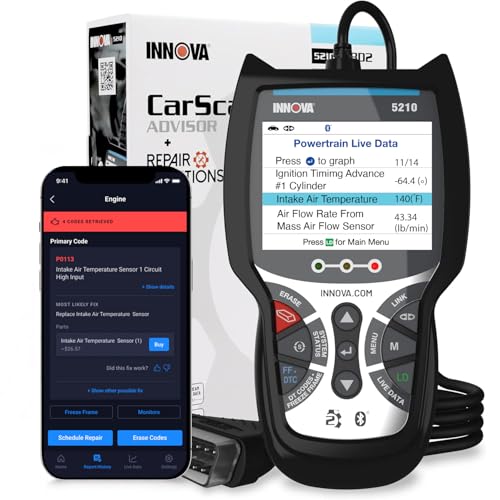
- OBD2 SCANNER & BATTERY TESTER IN ONE – The INNOVA 5210 OBD2 scanner...
- LIVE DATA & REAL-TIME DIAGNOSTICS – Get instant access to OBD2 live...
- ENGINE CODE READER – This automotive diagnostic tool works with most...
Works Quietly in the Background
You want an app that connects, logs your data, and shuts up until something matters. A quiet app keeps you trusting it. If it can’t stay silent, it isn’t worth the space on your phone.
The Mistake I See People Make With OBD2 Scanner App Notifications
The biggest mistake is muting everything at once. I did it myself, and I regretted it within a week. You silence the junk, but you also silence the one alert that could save you a costly repair.
Here’s what to do instead. Go through the notification list one by one and ask a simple question: would this alert ever change what I do today? If the answer is no, switch it off.
If it’s yes, keep it on.
I wish someone had told me this earlier. Turning off alerts in small steps keeps your app useful instead of turning it into background noise you never check.
You lie awake wondering if that flashing warning light was something serious, and the app you muted weeks ago can’t tell you now. That’s the fear that gets expensive fast. What finally worked for us was the scanner my neighbor swears by:
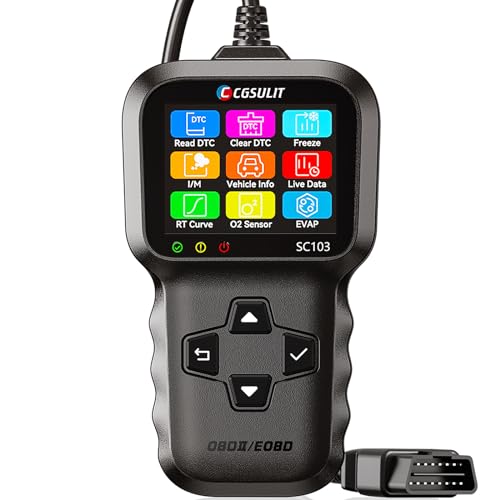
- PROFESSIONAL DIAGNOSTICS MADE SIMPLE — Trusted by Scotty Kilmer, the...
- UNIVERSAL COMPATIBILITY & PLUG-AND-PLAY — This enhanced OBDII code...
- VIBRANT 2.8" TFT COLOR SCREEN — Unlike basic monochrome code...
Set Up a Quiet Driving Mode and Enjoy the Silence
Here’s the tip that changed everything for me: set up your phone to go quiet the moment you start driving. It’s a one-time setup, and the payoff is huge. No more buzzing while you’re merging onto the highway.
On most phones, you can turn on a driving focus or do-not-disturb mode that kicks in automatically. Then allow only the scanner app’s critical alerts through. Everything else waits until you park.
I did this in about five minutes and never looked back.
The aha moment? You don’t need to fight each alert one by one. You just control when they’re allowed to reach you.
My drives got calmer, and I actually started trusting the alerts that did come through.
Try it on your next trip. Set the mode, drive, and notice how much less you reach for your phone. That quiet alone is worth the setup.
My Top Picks for How to Stop Irrelevant Notifications From an OBD2 Scanner App
FOXWELL NT301 OBD2 Scanner Live Data Diagnostic Tool — The One I Trust for Clean, Focused Alerts
The FOXWELL NT301 gives me live data and clear fault codes without flooding my phone with junk. I love that it stays focused on what actually matters under the hood. It’s perfect for anyone tired of noisy apps that ping all day.
The trade-off is a smaller screen, but that keeps it simple.

- 【Diagnose Check Engine Light in Seconds – No Mechanic Needed】The...
- 【Clear & Reset CEL with Confidence】Unlike cheap code readers that...
- 【Sm-og Check Helper – Know Your Pass/Fail Status Before the...
ANCEL AD410 Enhanced OBD2 Vehicle Code Reader Scanner — My Pick for Quick, No-Fuss Checks
The ANCEL AD410 is what I grab when I just want a fast, honest answer about a warning light. I love how it reads codes in seconds and keeps the noise down. It’s perfect for newer drivers who don’t want a complicated setup.
The trade-off is fewer advanced features, but it does the basics well.
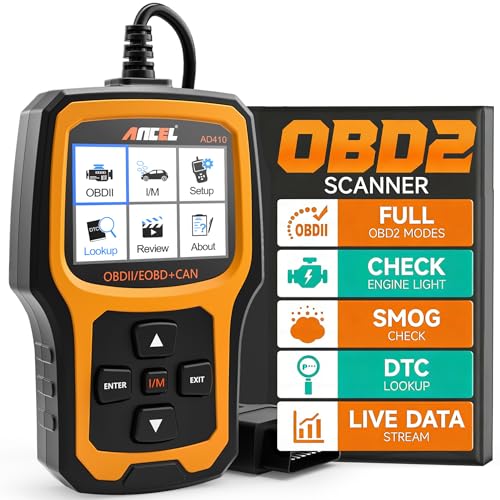
- Understand Your Check Engine Light – The ANCEL AD410 OBD2 scanner...
- Full OBD2 Diagnostics Made Simple – More than a basic engine code...
- Live Date & Real-time Vehicle Insights – View real-time engine data...
Conclusion
The single most important takeaway is that you control the noise, not the app. A few minutes in your notification settings keeps the useful alerts and silences the rest.
So open your scanner app right now, find the Notifications menu, and switch off one alert you don’t need — that small step takes two minutes and might be the reason you finally trust your warning light again.
Frequently Asked Questions about How to Stop Irrelevant Notifications from an Obd2 Scanner App?
Can I turn off notifications for just one type of alert?
Yes, most scanner apps let you switch off alert types one at a time. Look for a Notifications menu with individual toggles. That way you keep fault codes on and silence the rest.
I always start there before touching my phone settings. It’s the cleanest fix, and it keeps the app useful. If the app hides those toggles, your phone’s own notification controls are the backup plan.
Why does my scanner app send alerts when the car is off?
Many apps keep running in the background and send connection or reminder alerts even when the engine is off. The app stays active on your phone, so it keeps pinging. Closing it fully or limiting background activity usually stops this.
In my experience, this is the most annoying kind of alert because nothing is happening with the car. Check your phone’s battery or background app settings and restrict the app there. The pings stop fast.
What is the best OBD2 scanner app setup for someone who just wants silence on the road?
A quiet setup means keeping only fault code and check engine alerts on, and switching off everything else. That’s the combination that actually works. You want the app to speak up only when the car has a real problem.
If your current app won’t let you do that, a dedicated scanner is the honest fix. What finally worked for us was the reader I keep in my glovebox, because it stays quiet until something matters.

- MAINTAIN PEAK PERFORMANCE AND SAFETY ON THE ROAD - Easily find and fix...
- PRO-LEVEL FUNCTIONALITIES - Use the INNOVA 5610’s Enhanced Data...
- COMMAND WITH BIDIRECTIONAL CONTROLS - The INNOVA 5610 bidirectional...
Which OBD2 scanner won’t let me down when a real warning light comes on?
The FOXWELL NT301 is a solid pick because it reads live data and clear fault codes without flooding you with alerts. It stays focused on the car, not on promos or reminders. That focus is exactly what you want when a warning light appears.
I recommend it to friends who are tired of noisy apps. It’s simple to use and gives you a straight answer. For a dependable option, the one I sent my sister to buy has earned its place in my car.
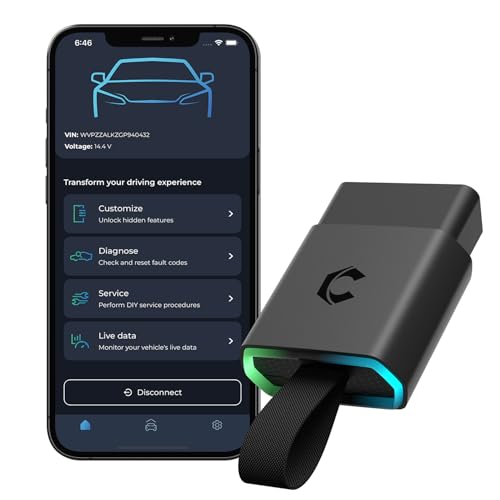
- SUBSCRIPTION REQUIRED for Advanced Features: The Carista EVO Scanner...
- Wide Compatibility: Works with certain Acura, Audi, BMW, Buick...
- The All-in-One Car Tool: Diagnostics, access freeze frame data, unlock...
Will turning off alerts make me miss a serious problem?
No, as long as you keep fault code and check engine alerts switched on. Those are the ones tied to real car trouble. Everything else is optional noise you can safely silence.
I muted trip summaries and connection pings months ago and never missed anything important. The key is being selective, not switching everything off at once. Keep the critical alerts and let the rest go.
Do I need to change my phone settings too?
Sometimes yes, especially if the app won’t let you fine-tune its alerts. Your phone’s notification controls can silence whole categories or block banners. It’s a useful backup when an app gets stubborn.
I usually try the app first, then fall back to phone settings. Between the two, you can get almost any scanner app to behave. It takes a few minutes and saves you hours of buzzing.